Search Paths
By default, LTspice searches for symbols and circuit libraries by the following priority:
- The folder of the currently active schematic and its subfolders
- Folders defined under the Search Paths Settings tab
- The default User\Documents\LTspice folder (changeable in this tab)
- The ADI installed library (factory default is not changeable)
You can change the user files location, and you can expand the search by adding paths here.
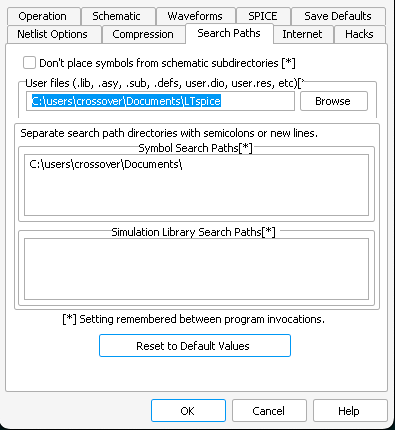 [TEMP]
Note: Search is used for populating the Place Component dialog with symbols and for simulation with subcircuits in library files. Note that a comprehensive search for symbols is made when you open a new or existing Schematic or you press Refresh in the Place Component dialog—this search is used to populate the Place Component dialog. Note that search checks for symbol files in all subfolders of your schematic‘s folder. If your schematic is placed in a folder containing a deep hierarchy, or is on a slow network drive, you may get a message asking if you do not want to complete the search, i.e. taking a long time. You can short-circuit this process by turning on Don't place symbols from schematic subdirectories in this Settings tab.
Note: Do not make changes to any of the factory-installed libraries. These will be overwritten when LTspice or components are updated. Changes you make to folders and files in your User Files are safe.
The Settings
Don't place symbols from schematic subdirectories
Limits symbol search to the schematic‘s root directory, ignoring subdirectories. Applies to population of Place Component dialog.
User Files
Your main repository of schematics, custom symbols, plot defs, subcircuit libraries, custom model libraries (*.dio, *.res), etc. Default is your …\Documents\LTspice folder. This folder is never overwritten by LTspice updates or component updates.
Symbol Search Paths
Additional search paths you would like to LTspice to use when populating the Place Component dialog with symbols. Subfolders are also searched when populating the Place Component dialog.
Right-Click > Browse to browse for folders.
Simulation Library Search Paths
Paths you would LTspice to search when simulating, e.g. library and subcircuit files called by .include statements or called on by symbols. Each defined path is considered a root for any relative paths in your schematic.
Enter each path on its own line or separate with semicolons. Right-Click > Browse to browse for folders.
Relative Paths and Environment Variables
Environment variables are supported in paths defined here. In LTspice simulation, all paths listed in this tab act as roots to any relative paths defined in a schematic.
Copyright © 1998–2025 by Analog Devices Inc. All Rights Reserved.